How to Calculate Canvas Size and DPI for Print and Screen Design
A practical guide to using the Freeclay Canvas & DPI Calculator to determine precise pixel dimensions for 300 DPI commercial print, social media, and creative software workflows.

Setting the right canvas dimensions at the beginning of a creative project prevents painful rework later. Mismatched DPI settings can result in blurry, pixelated commercial prints, while needlessly inflated canvas sizes consume excess system RAM and slow down graphic software.
The Freeclay Canvas & DPI Calculator (Aspect Ratio & DPI Calculator) simplifies the math between physical print units and digital pixel grids. This tutorial walks through using the tool and transferring calculated specifications directly into tools like Photoshop, Illustrator, Procreate, and Figma.
1. Understanding the Core Formula: Physical Size, Pixels, and DPI
Before configuring a canvas, it helps to understand the underlying mathematical relationship:
DPI (Dots Per Inch) measures print dot density per linear inch, while PPI (Pixels Per Inch) represents screen pixel density. The basic formula is:
Pixel Dimension = Physical Size (Inches) × DPI
For example, an ISO A4 sheet measures 8.27 × 11.69 inches (21.0 × 29.7 cm). At 300 DPI (the commercial offset printing standard), the document requires 2481 × 3507 pixels (approximately 8.7 megapixels). Dropping to 72 DPI reduces the pixel count to 595 × 842 pixels—adequate for web previews, but visibly pixelated on physical paper.
2. Step 1: Selecting a Standard Preset or Entering Custom Dimensions
Navigate to the Freeclay Canvas & DPI Calculator at freeclay.com/tools/aspect-ratio-dpi/. The top section provides quick presets for common paper and screen formats: A3, A4, A5, US Letter, Poster 18 × 24 in, Social 4:5, and Square 1080.
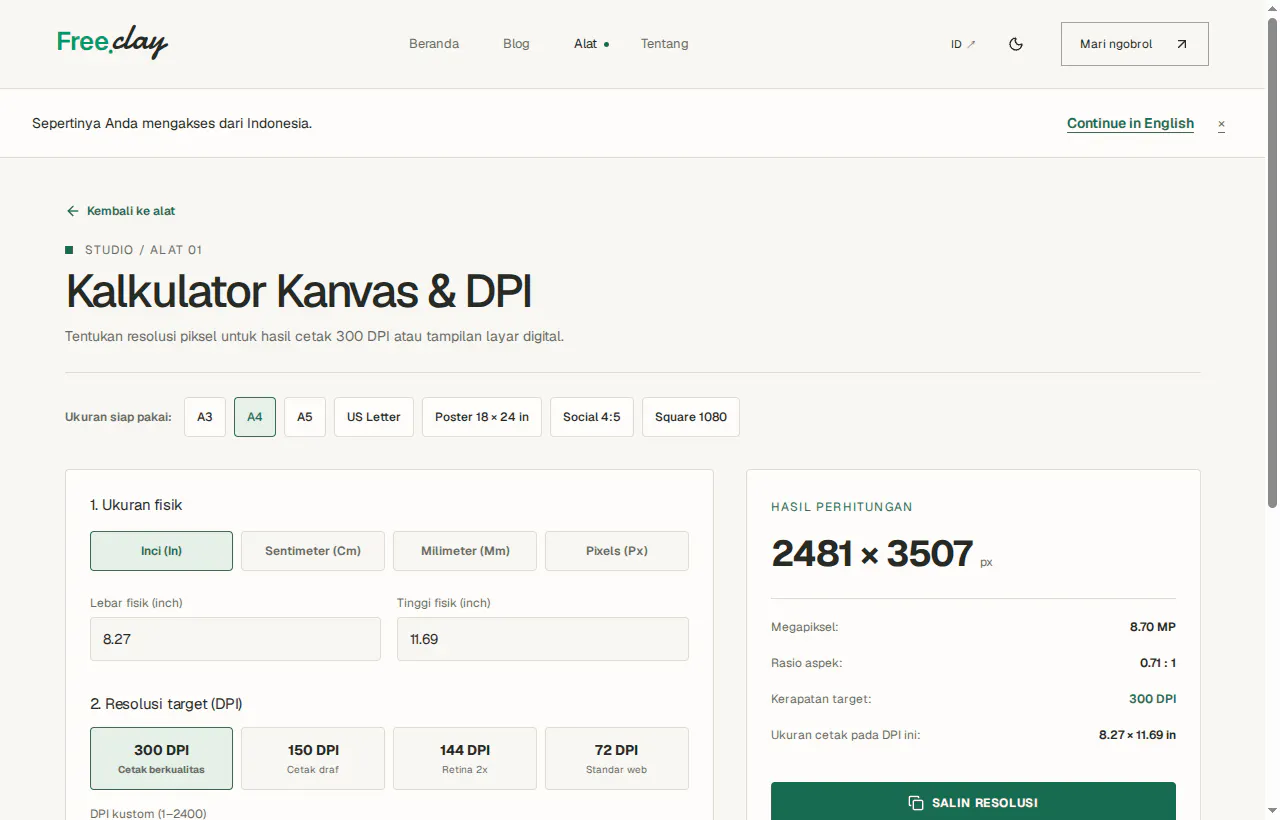
Click any preset button (such as A4) to automatically populate width, height, unit, and default DPI. You can toggle between Centimeters (Cm), Millimeters (Mm), Inches (In), or Pixels (Px) depending on printer requirements.
3. Step 2: Choosing the Target DPI for Your Output Medium
Select the target resolution based on where the finished design will be displayed:
• 300 DPI (Commercial Print): Industry standard for brochures, magazines, business cards, flyers, and packaging inspected at arm's length.
• 150 DPI (Draft Print / Large Poster): Ideal for large wall posters, exhibition graphics, or outdoor billboards viewed from 1-2 meters away.
• 144 DPI (Retina 2x Display): High-DPI screen standard, keeping digital illustrations crisp on modern Retina displays without bloat.
• 96 DPI / 72 DPI (Web & Screen Standard): Standard density for website graphics, social media posts, and digital ad banners.
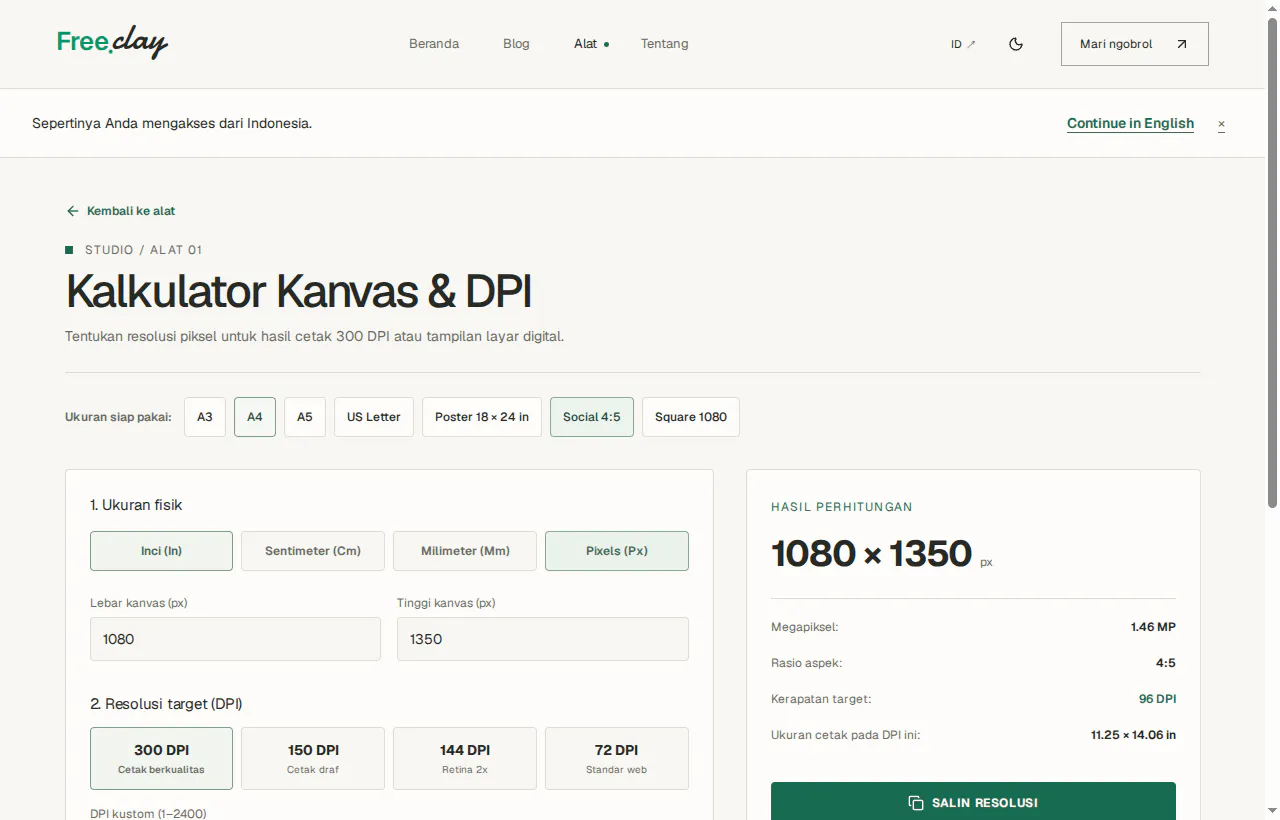
When switching to Pixel units or selecting social presets like Social 4:5, the tool calculates the reduced aspect ratio (4:5), total megapixels (1.46 MP), and physical print dimensions if the graphic were output to paper.
4. Step 3: Setting Custom DPI for Fine Art & Giclée Printing
If your print lab or archival inkjet printer specifies a non-standard resolution (such as 600 DPI for fine-art giclée reproductions), enter the value directly into the 'Custom DPI' field.
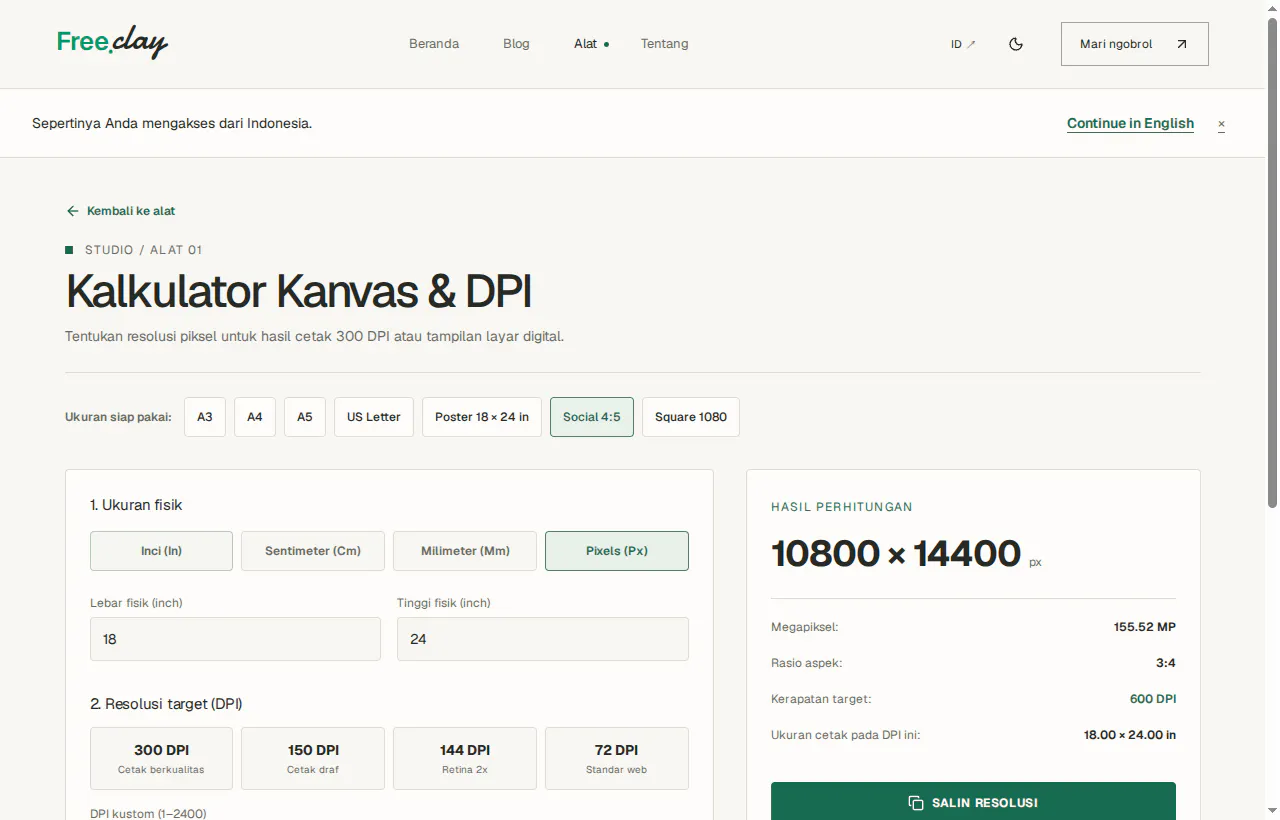
The calculator supports integers from 1 to 2400 DPI with instant validation. For an 18 × 24 inch canvas at 600 DPI, the tool shows that you need 10,800 × 14,400 pixels (155.52 MP). Having this exact spec upfront avoids memory crashes and unexpected canvas cropping inside creative applications.
5. Step 4: Reviewing Technical Specs and Copying to Design Software
The right-hand inspection card provides a complete technical breakdown:
• Pixel Dimensions: Exact Width × Height in pixels to enter in software.
• Aspect Ratio: Mathematical ratio simplified via GCD (Greatest Common Divisor).
• Megapixels & File Size Estimate: Total pixel volume and uncompressed raw bitmap memory footprint.
• Physical Print Dimensions: Verified centimeter and inch equivalents.
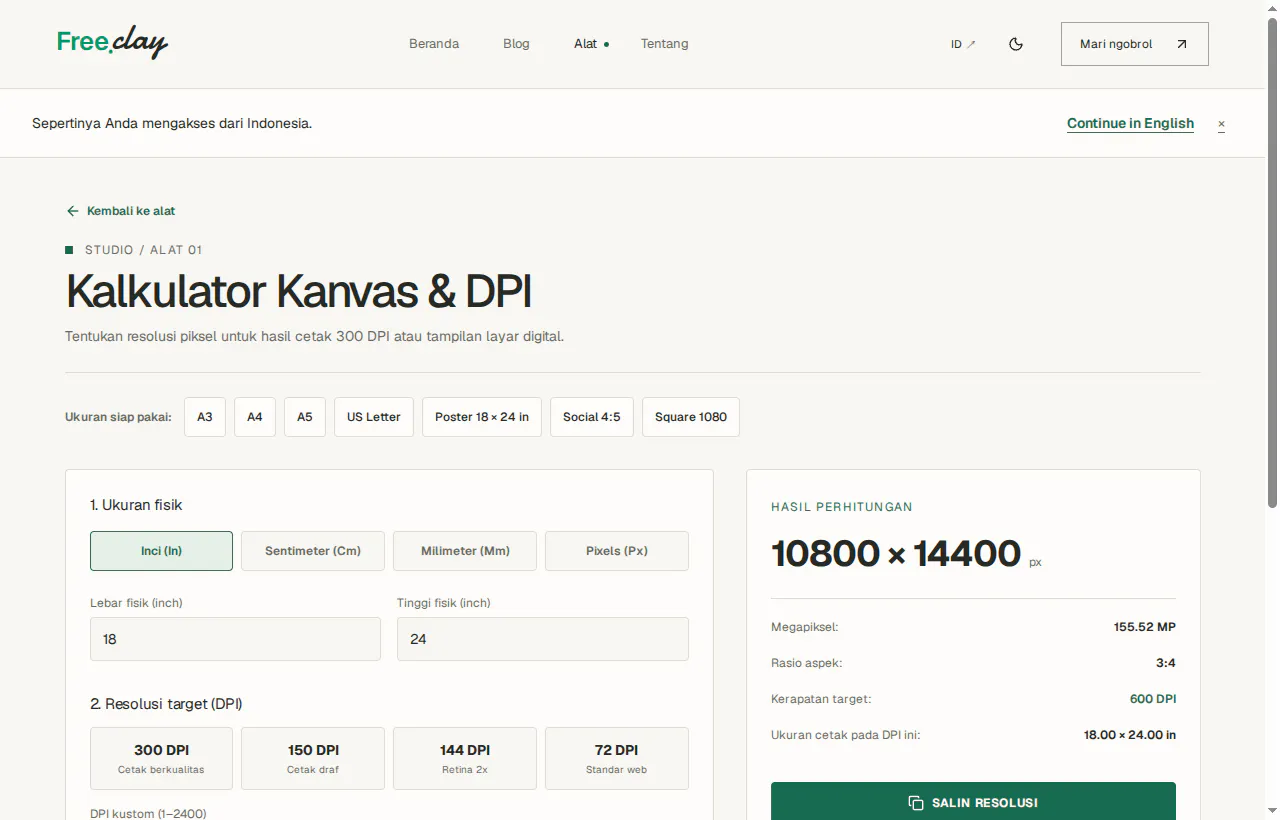
Click 'Copy Specification' to copy the formatted technical summary to your clipboard, ready to paste into design notes or input into the 'New Document' dialog in Photoshop, Procreate, or Figma.
6. Key Takeaways for Creative Workflows
1. Always design for the final medium: Use 300 DPI for physical ink and paper; 96 or 144 DPI for screen delivery.
2. Monitor tablet layer limits: In raster illustration tools like Procreate, higher pixel counts reduce maximum available layers. A 300 DPI A4 canvas provides the ideal balance between layer depth and print fidelity.
3. Avoid retroactive DPI upscaling: Increasing DPI on an existing 72 DPI file will not restore lost details. Always establish the proper resolution at the moment of canvas creation.