Create a poster concept with Adobe Firefly: prompt and composition
Build a prompt for a poster concept, choose a model and aspect ratio, then judge whether the image leaves room for a headline.
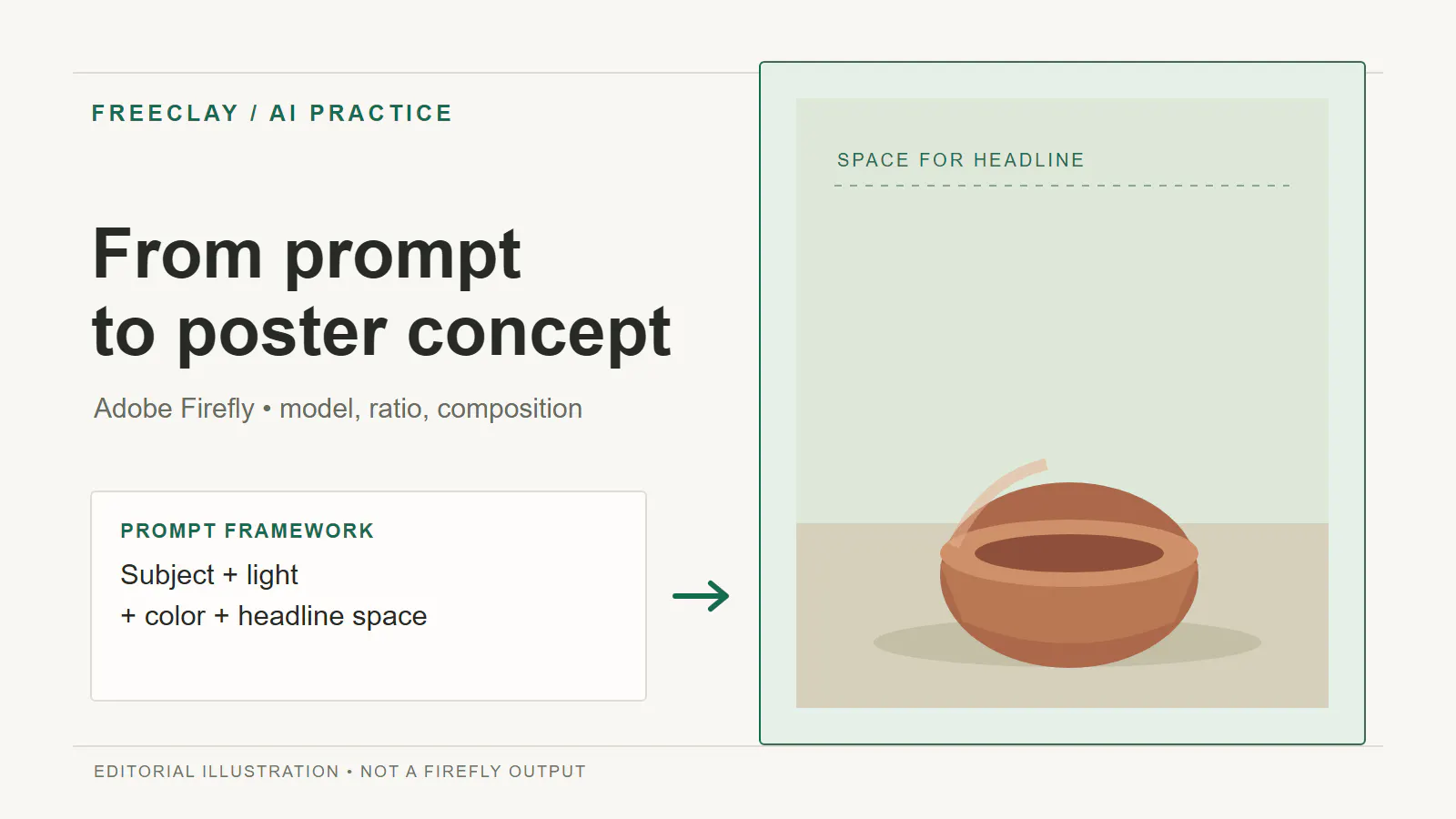
An attractive image does not always make a usable poster. When every part of the frame is busy, the headline has nowhere to go. This tutorial develops a visual concept for a fictional ceramics workshop: one terracotta bowl low in the frame, restrained colors, and open space above it. Adobe Firefly helps explore the image; you still make the final layout and typography decisions in a design tool. The cover above is a Freeclay editorial illustration, not a Firefly generation.
1. Write a visual brief before the prompt
Set four constraints first: one ceramic bowl as the subject, a portrait poster, warm light against dark green, and headline space at the top. A short brief lets you judge each image by its job rather than by appearance alone. The workshop is fictional and does not represent a Freeclay event.
2. Open Generate image and check the model
Open Adobe Firefly Generate image. From the home page, choose Image, then Generate image. In General settings, open Model and select Firefly Image 5 to follow this example. Firefly also offers partner models, and the initial selection may change, so check the model name before starting. Choose Aspect ratio Portrait (3:4) as the base for a portrait poster. Adobe says Firefly Image 5 creates one image per Generate action; other models can return different numbers of variations. See Adobe's image generation guide.
3. Write a prompt that reserves headline space
Enter this prompt as a starting point:
Editorial poster background for a fictional ceramics workshop. One handmade terracotta bowl on a warm paper-colored table, soft morning side light, muted forest-green wall, quiet photographic style, bowl in the lower third, broad clean negative space in the upper half for a headline, no text, no logo.
It specifies the subject, material, lighting, palette, and position. “Lower third” and “negative space in the upper half” guide composition; “no text, no logo” asks for a background you can typeset yourself. None of these phrases guarantees exact placement. Adobe also recommends direct, specific prompts and revising descriptions when the result misses the goal. Read Adobe's prompting guide.
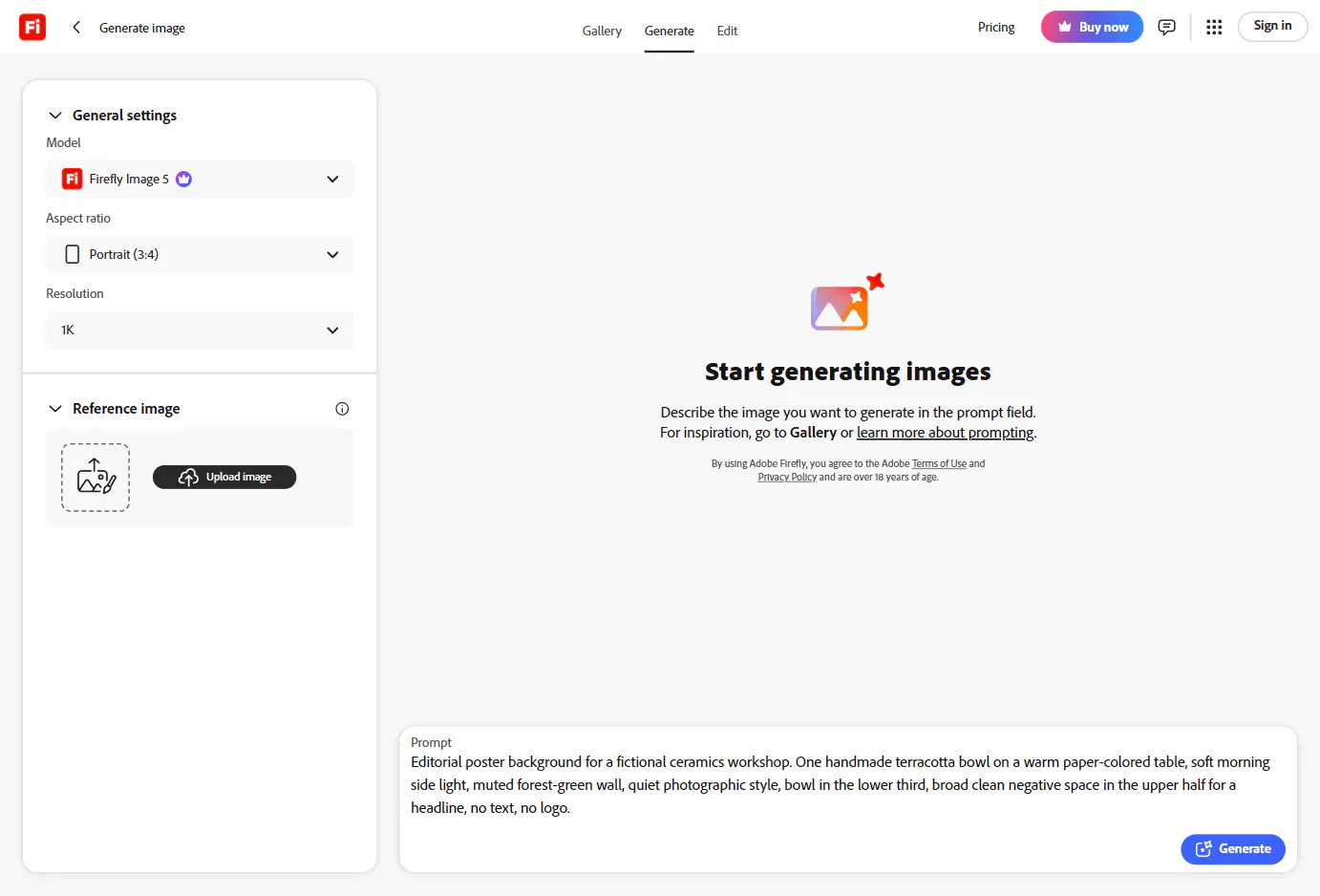
This screenshot shows the model, ratio, and prompt on September 26, 2026. The interface may change.
4. Evaluate before generating another variation
Select Generate when you are ready to use your account under its current terms. Check four things in the resulting image: whether the bowl reads as the main subject; whether the upper area has enough room for a headline; whether the colors fit the brief; and whether stray details or letters appear. A beautiful image can still fail the poster task.
If the headline area is crowded, change one part of the prompt to “single bowl in the bottom quarter, upper two-thirds mostly plain muted green wall”. If the light is too harsh, adjust only the lighting phrase. Changing one variable at a time makes the effect easier to judge. Keep the image that best fits the brief and record its model and aspect ratio.
5. Finish a poster, not just an AI image
Download the selected image and place it in a poster document. Set the final dimensions with the Freeclay Canvas & DPI Calculator for your target medium. Add the headline, date, and event information as editable text; do not rely on a generated image for precise typography. Check the text and background colors with the Freeclay Contrast Checker. If the headline area is still busy, revise the image or place a simple color field behind the text.
This workflow separates image exploration from the final design decision. The model and ratio set a starting point, the prompt provides direction, and your review determines whether the image is useful for the poster.